
Inningly Overview
Inningly helps youth baseball and softball coaches prepare for games, create balanced lineups, monitor pitcher workload, and keep useful coaching resources organized.
Last reviewed
This overview explains how the main parts of Inningly work together. You do not need to set up everything at once. Start with your team and roster, then add the tools that are useful for how you coach.
The big picture#
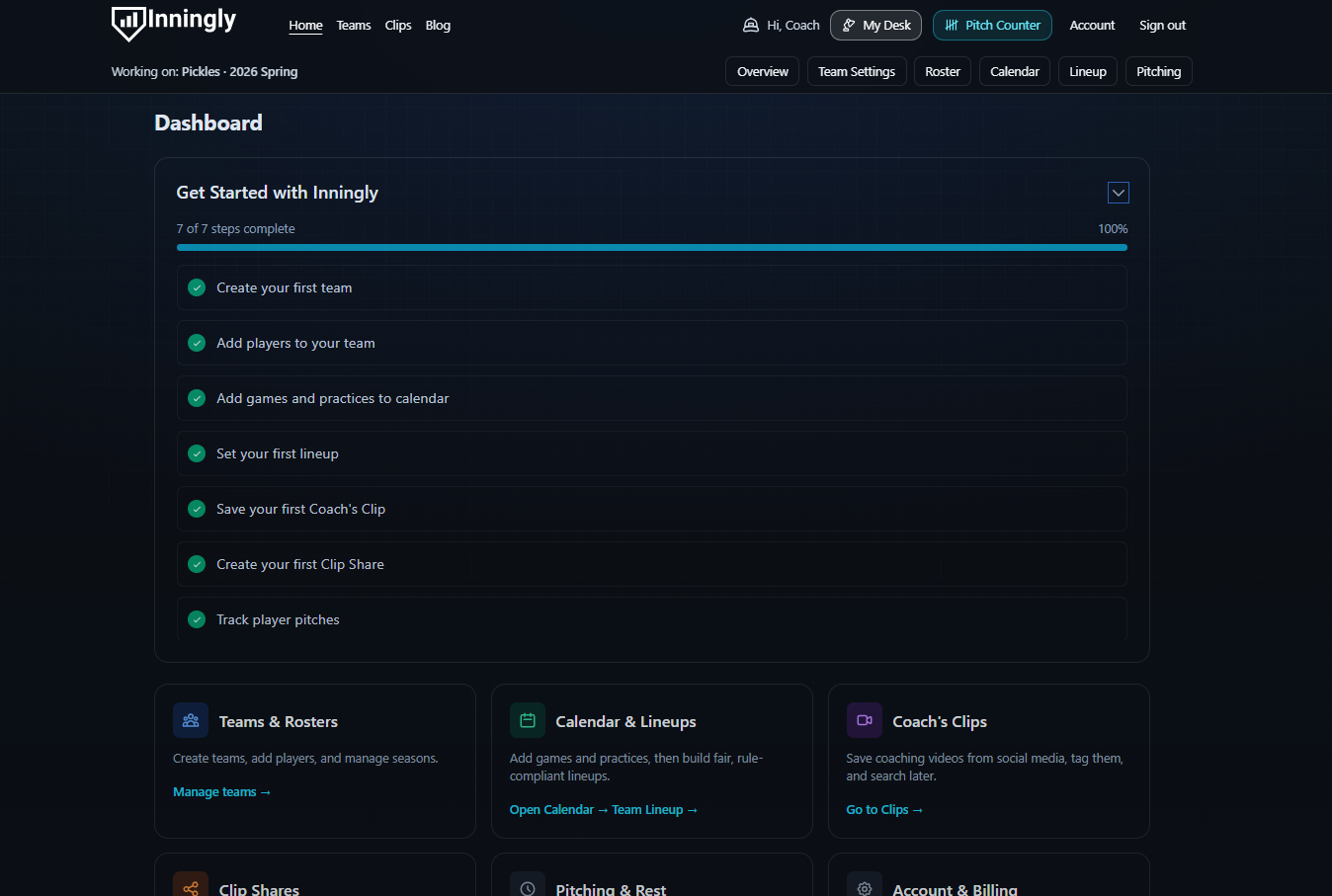
Most of your work in Inningly begins with a team. Each team has its own roster, schedule, lineups, and pitching records.
Those pieces work together:
- Create a team for the season.
- Add the players on your roster.
- Add games to the calendar.
- Prepare and save a lineup for each game.
- Record pitcher workloads to keep future availability accurate.
Coach’s Clips and Clip Shares complement those team tools. They give you a separate place to save coaching videos and share selected resources with players, families, or assistant coaches.
Set up your season#
A team is the starting point for the season. It connects the players you coach with the games, lineups, and pitching information you manage in Inningly.
After creating a team, add your roster. Player information entered on the roster becomes available when you prepare lineups and record pitcher workloads, so you do not need to enter the same players again for every game.
Next, add games to the team calendar. Each game becomes a place to prepare and save that day’s lineup. Keeping the calendar current also makes it easier to see what is coming next and what still needs your attention.
Inningly will guide you through these first steps from the getting-started checklist on your dashboard.
Prepare for each game#
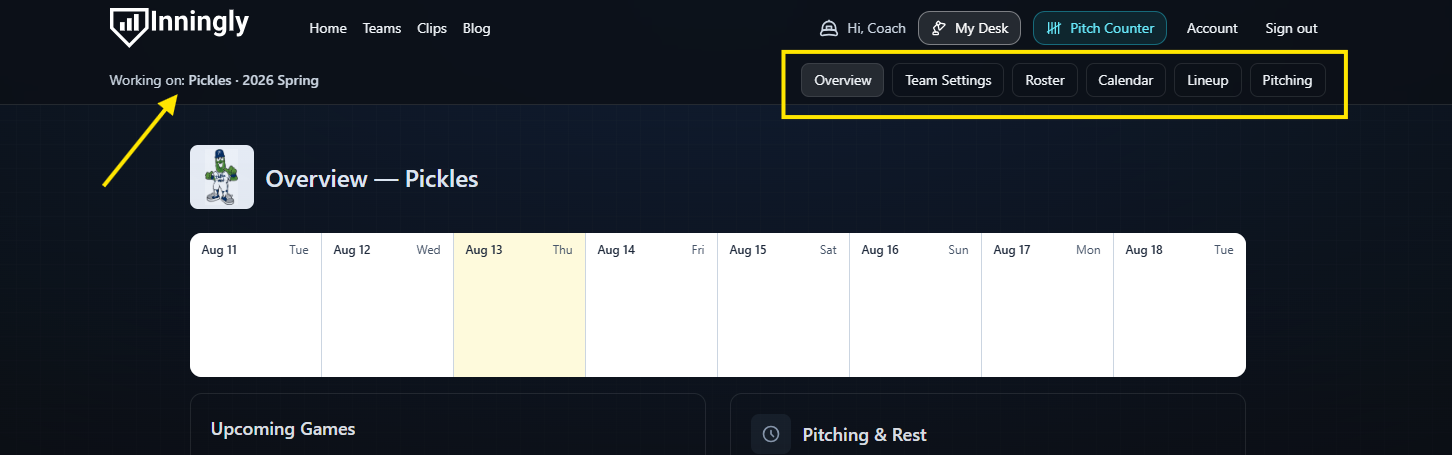
When a game is approaching, open the team you are working with and use its calendar, lineup, and pitching pages together.
The calendar holds the game details. The lineup page uses your roster to help you build the defensive lineup and batting order. You can account for which players are available, generate a starting point, and adjust the result before saving it for the game.
The pitching page shows recorded workloads and pitcher availability. Reviewing it before the game can help you make a pitching plan. Recording workloads afterward keeps the information ready for the next game.
Keep track of pitching#
Inningly helps you carry pitching information from one game to the next.
After a pitcher appears in a game, record the date and workload on the team’s pitching page. Inningly uses those records with the team’s rest schedule to help show when the player may be available to pitch again.
The Pitch Counter is a separate, mobile-friendly tool for counting pitches during a game. The final workload should still be recorded for the team so it becomes part of that pitcher’s history.
Inningly provides workload information to support your decisions. Coaches remain responsible for following their league rules and making appropriate player-safety decisions.
Save and share coaching resources#
Coach’s Clips is your personal library of useful coaching videos. Save links from supported video platforms, organize them with tags, and search for them when you need a drill, explanation, or teaching example.
Clip Shares let you collect selected clips into a shareable page. You might create one for a practice plan, at-home drills, position-specific instruction, or resources for assistant coaches.
Unlike rosters, games, lineups, and pitching records, Coach’s Clips and Clip Shares belong to your coach account rather than a particular team. Your saved resources can remain useful as you move between teams and seasons.
Free and Plus#
A Free team includes the core tools needed to manage a roster, schedule games, create lineups, and track pitcher workload.
Inningly Plus adds more powerful capabilities for coaches who need them. You can begin with a Free team and upgrade later without rebuilding your team or starting over.
Coach’s Clips also has its own optional upgrade for coaches who want additional clip and sharing capacity.
See Understand Free and Plus for the current features included with each option.
Where to begin#
If you are new to Inningly, start with these guides:
- Create your first team
- Add roster players manually, from an Inningly team or from GameChanger
- Add your first game
- Create your first lineup
- Start tracking pitcher workload
You can also return to the Inningly Help Center whenever you need instructions for a specific task.