
Create a Defensive Lineup
Generate a defensive lineup using your available players, team settings, and lineup rules.
Last reviewed
Inningly creates a defensive lineup for a specific game using the players who are available, your team settings, and the lineup rules and preferences you have selected.
The generated lineup is a starting point. You can review it, change assignments, generate another result, and save the version you want to use.
Before you begin#
Your Inningly team needs:
- Players on its roster
- A scheduled game
If either is missing, add players to your roster or add a game before continuing.
Open the lineup builder#
You can reach the lineup builder in several ways:
- Select Add Lineup beside an upcoming game on the team Overview.
- Select Lineup from the team navigation.
- Select Team Lineup → from the Dashboard.
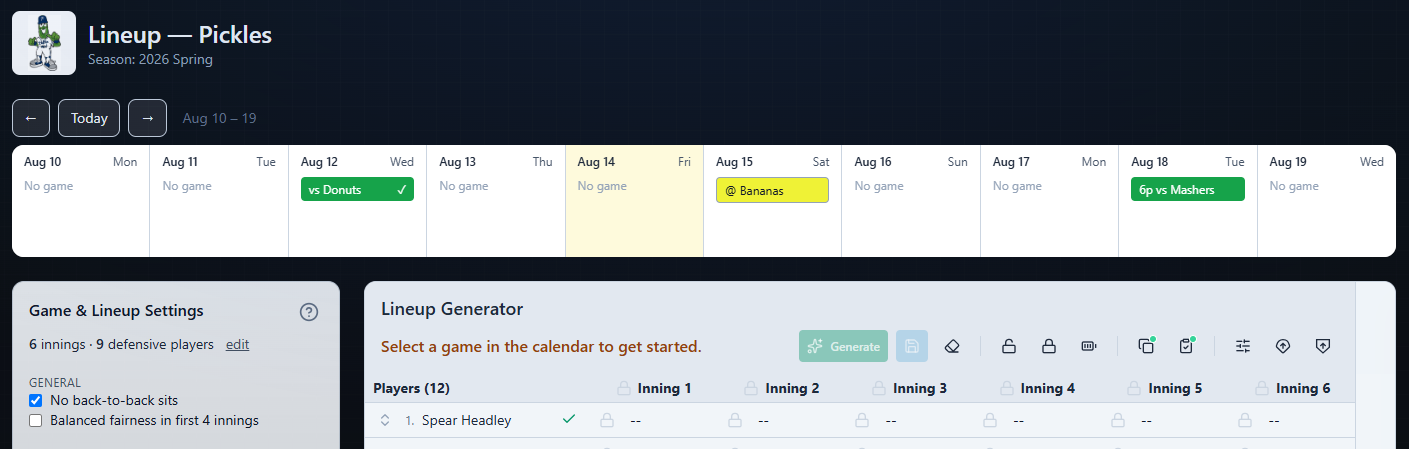
The lineup page uses the calendar strip at the top of the builder to identify which game you are preparing for.
Select the game#
In the calendar, click the game you want to make a lineup for. Use the arrows and Today button to find the game, as needed. A selected game has a green outline.
After clicking the game in the calendar, the lineup grid title changes to reflect the date and opponent. The Generate button also becomes available.
If the selected game already has a saved lineup, that lineup is loaded instead of starting with an empty grid.
Confirm which players are available#
Every player on the roster defaults as available for a new game.
Use the availability control to the right of a player’s name to mark anyone who will not play. A green check () indicates available. A red X () indicates unavailable. An unavailable player is crossed out, moved below the available players, and excluded from the generated lineup.
The Players count above the grid updates to show how many players are available.
Availability is saved to the selected game automatically. You can return and change it later if the game-day roster changes.
Confirm basic team settings#
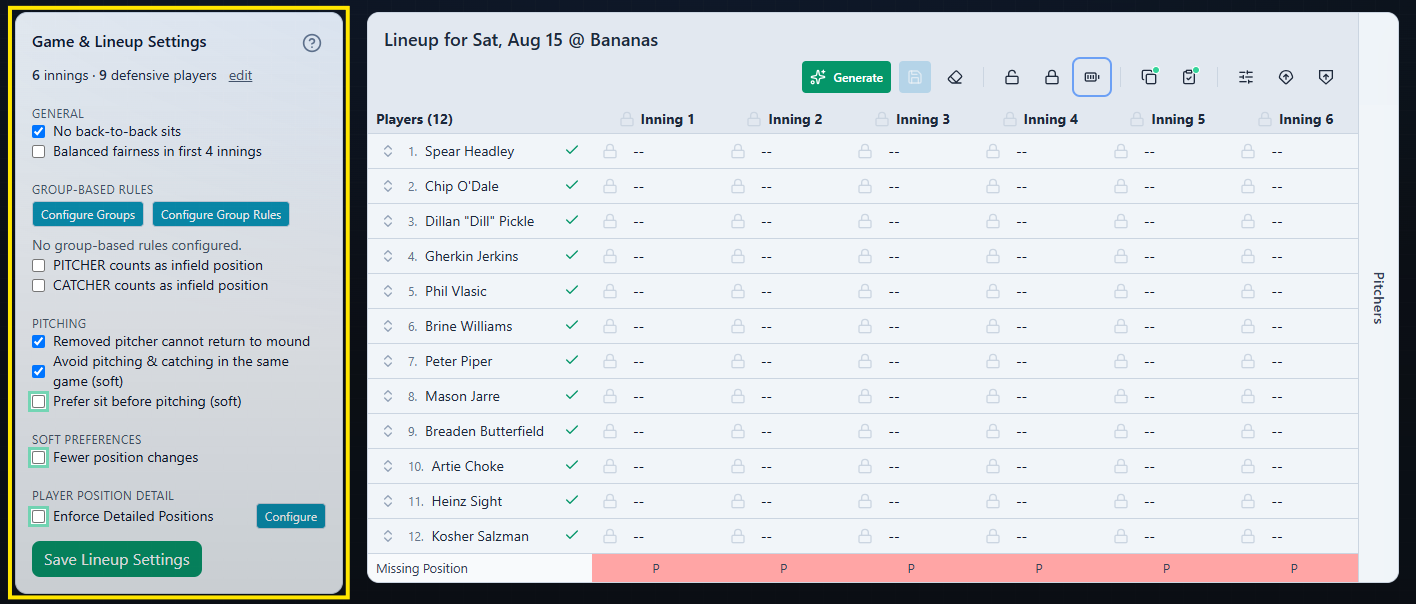
Before generating, review Game & Lineup Settings to the left of the lineup grid.
Start by confirming the summary showing:
- The number of innings
- The number of defensive players in the field
Select edit if either value needs to be changed in Team Settings.
Set lineup generation rules#
Calculation of an inning-by-inning lineup is governed by a set of rules around sitting, playing time fairness, and pitching rules. Some of these include:
- No back-to-back sits
- Balanced fairness in first 4 innings
- Removed pitcher cannot return to mound
- Avoid pitching & catching in the same game (soft)
Note
Read about the difference between Hard and Soft rules in this article
Select Save Lineup Settings when you want the current choices retained as the team’s settings for future lineups.
Additional controls for groups, detailed positions, pitching plans, and other preferences can be configured later. See Set lineup rules and restrictions when you are ready to further customize how Inningly builds results.
Generate the lineup#
After selecting the game and confirming player availability, select Generate.
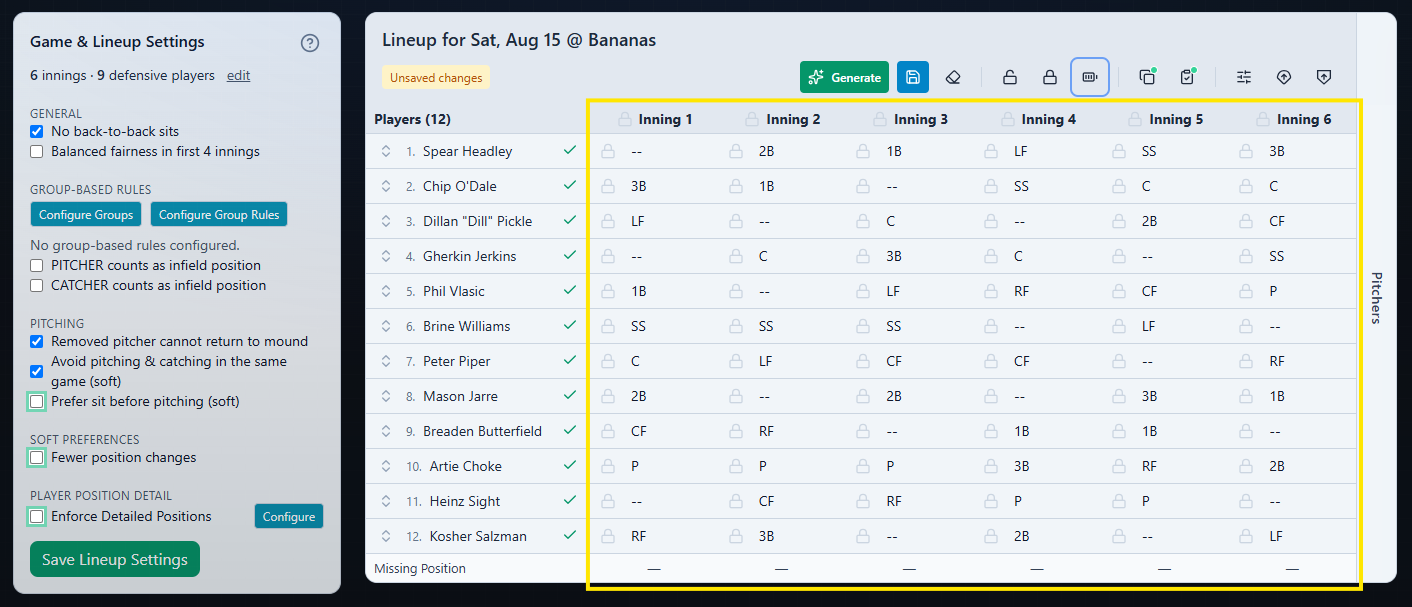
Inningly evaluates the available players and current lineup settings, then fills the defensive grid with a proposed position for each player in each inning.
When the result appears, Unsaved changes is displayed and the Save control becomes available.
Understand the result#
Each row represents a player, and each inning column shows that player’s defensive assignment.
A position abbreviation such as P, SS, or CF means the player is assigned to that position for the inning. -- means the player is on the bench.
The Missing Position row helps identify an inning that does not have every required defensive position filled. A completed inning shows no missing position.
Review and save the lineup#
Caution
Remember to click Save
The generated result does not become the game’s saved lineup automatically.
Review the assignments, make any changes you want, and then select Save in the lineup toolbar.
You can return to the game later to adjust the assignments or generate another result. See Review, adjust, and save a lineup for the available editing tools.
If Inningly cannot find a result that satisfies the current availability and rules, it displays Couldn’t Build This Lineup with possible reasons. See Resolve a lineup that cannot be generated for help reviewing the conflicting settings.
Lock it to keep it#
If you like part of a generated lineup but want Inningly to try a different result for the rest, lock the assignments you want to keep before selecting Generate again.
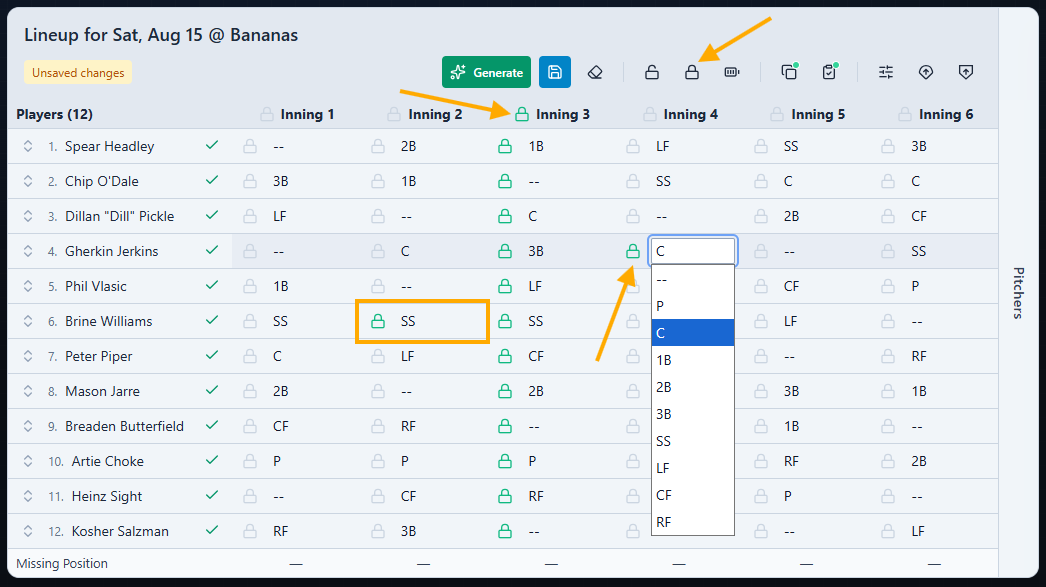
For example, if a player is locked at SS for Inning 2, Inningly keeps that assignment while regenerating the unlocked cells.
You can lock assignments at three levels:
- Use an individual lock to protect one player’s position in one inning.
- Use the lock beside an inning header to protect every assigned position in that inning.
- Use the whole-grid lock to protect every cell currently assigned to a defensive position. Bench cells marked
--are not locked.
When you manually choose a defensive position from a cell’s dropdown, Inningly automatically locks that cell so your change is preserved during the next generation.
← Back to Lineups and Batting Orders
Related articles
- Create a Team Create a team workspace for managing your roster, schedule, lineups, and pitching throughout the season.
- Set Lineup Rules and Restrictions Choose the general rules Inningly should follow—or try to follow—when generating your lineup.
- Set Player Position Preferences and Restrictions Set where each player should, may, or should not play when Inningly generates a defensive lineup.
- Review, Adjust, and Save a Lineup Check a generated lineup, make manual changes, and save the version you intend to use for the game.
- Resolve a Lineup That Cannot Be Generated Use Inningly’s diagnostics to identify conflicting settings and adjust a lineup that cannot be generated.