
Record Pitcher Workload
Record a pitcher’s workload after an appearance so Inningly can calculate rest and future availability.
Last reviewed
Record each pitcher’s throwing workload so Inningly can apply your team’s rest schedule and provide accurate availability guidance for future dates.
Workloads can come from games, practices, bullpens, or other throwing activity. Record them as soon as practical after the activity so the information is available when preparing for the next game.
Before you begin#
The team must have a Rest Schedule selected before workloads can be recorded.
If the Pitching page displays Set Up Pitcher Rest Schedule, select Set Rest Schedule →, choose the appropriate schedule in Team Settings, and save your changes.
The player must also be saved on the team roster. Any roster player can be selected as a pitcher; the player does not need to be assigned a pitching position first.
If the player is missing, add the player to your roster before recording the workload.
Open the workload window#
- Open the correct Inningly team and select Pitching.
- Find the workload date in the strip calendar.
- Select the date card or a game or practice shown on that date.
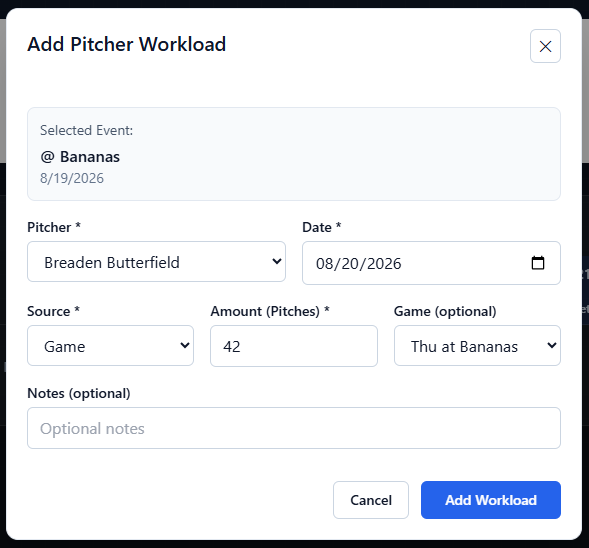
The Add Pitcher Workload window opens with the selected date filled in.
When you open it from a scheduled game or practice, Inningly may also select the related event and source automatically. When you open a date without selecting an event, Source begins as Other.

Enter the workload details#
Complete the required fields:
- Pitcher: Select the player who threw. Every player on the team roster appears in this list.
- Date: Confirm the date the throwing occurred.
- Source: Select Game, Practice, Bullpen, or Other.
- Amount: Enter the number of pitches or innings thrown.
The amount must be a positive whole number. The team’s rest schedule determines whether Inningly asks for Pitches or Innings.
You can also complete these optional fields:
- Game: Connect the workload to a scheduled team game.
- Notes: Add a short explanation or other useful context.
Selecting a game updates the workload date and source to match that game. If the workload did not come from a scheduled Inningly game, leave Game empty and choose the appropriate date and source manually.
Save the workload#
Review the appearance details, then select Add Workload.
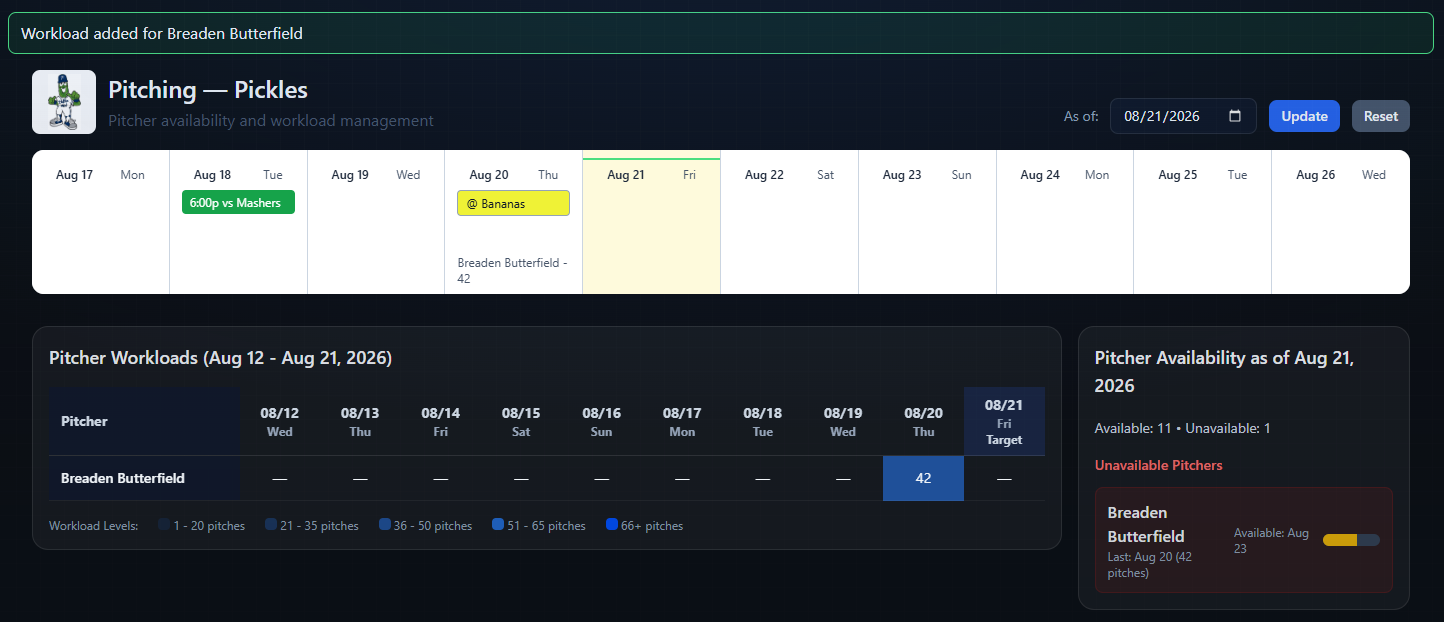
After the page reloads, Inningly displays Workload added for [player name]. The workload appears:
- On its date in the strip calendar
- In the Pitcher Workloads heatmap
- In pitcher-availability calculations for applicable later dates
- In the game’s workload status when linked to a scheduled game
If the workload date is outside the currently displayed period, change As of to a date that includes the workload and select Update.
Keep workload history complete#
Inningly’s availability guidance depends on the workload records saved for the team.
Record every throwing activity that your team’s rest rules should consider—not only game appearances. A missing game, practice, or bullpen record can make a pitcher appear available earlier than expected.
Inningly allows multiple workload records for the same pitcher and date. Their amounts are added together when calculating that day’s total. Use separate records when they represent separate throwing activity, but remove accidental duplicates.
If a workload contains the wrong pitcher, date, source, game, or amount, it cannot be edited in place. Delete the incorrect record and add it again with the correct information. More info at Edit or Remove a Pitcher Workload.
Changes to workload history can alter rest guidance for later games. Review the updated availability before making the next pitching decision.