
Copy Players from Another Team
Save time setting up a new season by copying players from an existing Inningly team.
Last reviewed
Note
Choose how to build your roster
You can add players individually, paste a roster from GameChanger, or copy players from another Inningly team. This article explains the Inningly team option.
When you start a new season, you can pull player details from one of your earlier Inningly teams instead of retyping everything. This works on an empty roster only—it copies information into the current team and leaves the source team unchanged.
Before you begin#
You need:
- A team whose roster is completely empty (no saved players). This is typical for a brand-new team. Copying is available only before any players have been saved to the new roster.
- At least one other Inningly team you can access that already has players on its roster.
- An active team season. Copy is not available on expired teams.
Copy is available on Free and Inningly Plus teams. Your roster limit still applies (shown under the page title as Limit: X players).
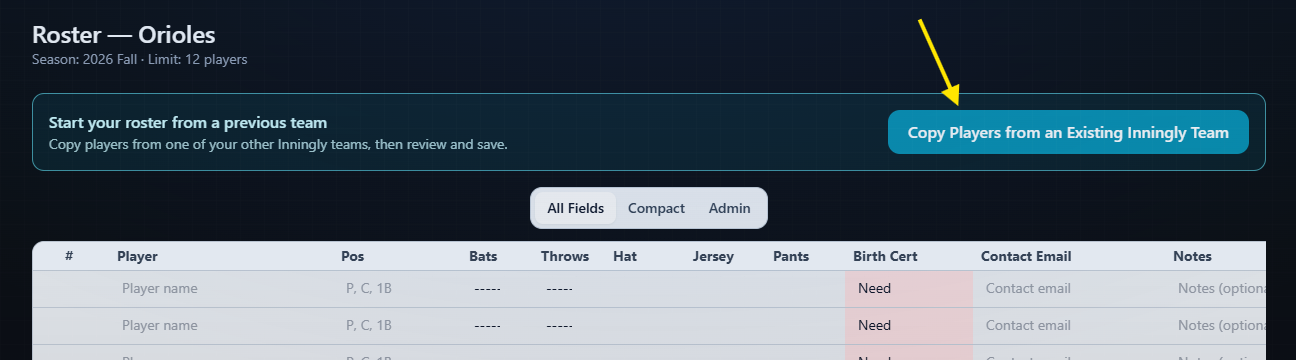
Copy players from a previous team#
- Open the team you are setting up and go to Roster (team navigation, or Manage roster → from Overview).
- In the Start your roster from a previous team banner, click Copy Players from an Existing Inningly Team.
- In the Copy players from an existing team window, browse your teams grouped by season (for example, 2026 Spring, 2025 Fall). Newer seasons appear first.
- Click the team you want to copy from. Each card shows the team name, player count, and age group when available.
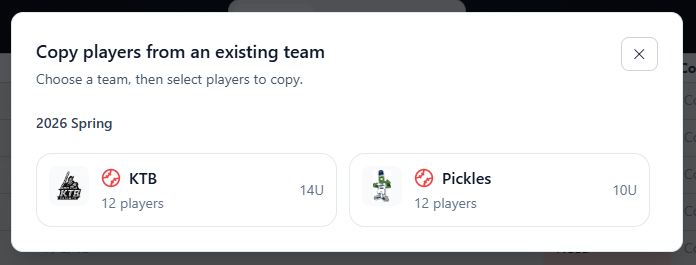
- Review the player list. All players are selected by default. Uncheck anyone you do not want, or use the header checkbox to select or clear all.
- Click Copy Selected to {your team name}.
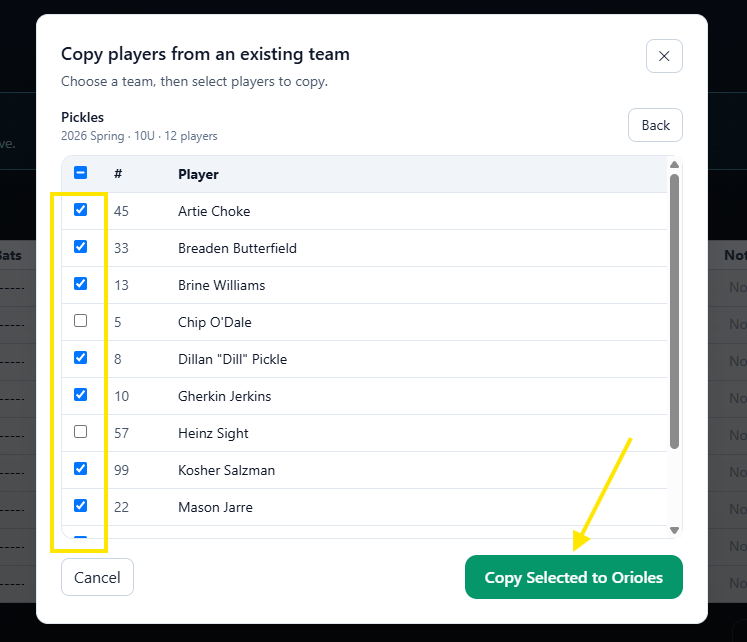
What happens next#
Selected players appear as rows on your roster with their copied details filled in, including name, jersey number, bats, throws, date of birth, and contact email when available.
Positions, notes, uniform sizes, and birth certificate status are not copied—you can add or update those on the roster table.
Review the roster, make any edits, then click Save roster. You should see Roster saved.
The team you copied from keeps its original roster exactly as it was. You are creating new player entries on the current team, not moving players between teams.
Troubleshooting#
You do not see the copy banner
- The roster may already have saved players. Remove all players, save, and try again.
- You may not have another team with players on its roster.
- The team season may have expired.
You see “This team allows up to {number} players.”
- You selected more players than your plan allows. Uncheck some players, or remove players you do not need, then try again.
You see “This roster already has players.”
- Copying is only available when the new roster is empty. Refresh the page and review the players currently on the roster.
You copied players but they disappeared after leaving the page
- Copy fills the roster form temporarily. Click Save roster before navigating away.