
Resolve a Lineup That Cannot Be Generated
Use Inningly’s diagnostics to identify conflicting settings and adjust a lineup that cannot be generated.
Last reviewed
When Inningly cannot satisfy the current player availability, locks, and hard lineup rules, it opens Couldn’t Build This Lineup.
Your existing lineup grid remains in place. Read the diagnostic messages before changing anything—they identify the specific conflict whenever possible.
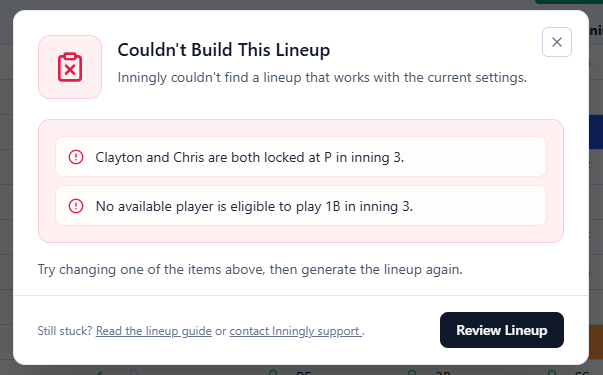
Select Review Lineup to close the message and return to the grid. Correct the named conflict, then select Generate again.
Read the lineup guide opens the in-app Rules Explained window. It does not change your lineup or settings.
Do not begin by turning off every rule. Most failures come from one identifiable conflict. Adjusting that rule, lock, restriction, or availability choice preserves the rest of your intended lineup.
Resolve lock conflicts#
Manual position changes are automatically locked, and pitching-plan assignments can also create locked pitcher cells. During generation, a lock is a hard instruction that Inningly cannot move.
Use the diagnostic message to find the affected inning and player:
| If the message says… | What it means | What to change |
|---|---|---|
| Two players are both locked at the same position | A defensive position can only be filled once in an inning. | Unlock one player and allow Inningly to reassign them. |
| An inning has more players locked to the bench than the lineup allows to sit | Too many – assignments are locked for that inning. | Unlock one or more bench assignments. Also confirm that player availability is correct. |
| A player is locked at a position they are not allowed to play | The lock conflicts with that player’s Never restriction. | Unlock the cell or change the player-position restriction. |
| A player is locked at a position for more innings than allowed | The locks exceed Max innings (global) for that position. | Unlock some assignments or raise that position’s maximum. |
If several locks are no longer needed, use Clear All Locks in the toolbar above the defensive lineup grid, and generate again. This removes the locked instructions without clearing the assignments currently visible in the grid.
Resolve position eligibility conflicts#
Note
These rules and messages apply when Enforce Detailed Positions restriction is active.
When detailed positions are enforced, Never and Max innings (global) are hard restrictions.
| If the message says… | What it means | What to change |
|---|---|---|
| No available player is eligible to play a position in an inning | Every possible player is unavailable, restricted from the position, already locked elsewhere, or over the position maximum. | Make an eligible player available, change an unnecessary Never to If needed or Always, raise the position maximum, or release a conflicting lock. |
| Player position limits are preventing a valid lineup | The combined Never settings, maximum innings, availability, and locks leave too few valid assignments. | Review the affected positions in Player Positioning and relax only the restriction or maximum preventing coverage. |
| Position caps are preventing a valid lineup | A saved position limit conflicts with the current players or locks. | Review detailed-position maximums and locked assignments. If no matching control is visible, use the support link in the diagnostic window. |
See Set player position preferences and restrictions for the difference between Preferred, Always, If needed, and Never.
Use If needed instead of Never when a position is undesirable but still acceptable as a last resort. This preserves flexibility without making the position a preferred assignment.
Resolve sitting and fairness conflicts#
Sitting rules must work with the number of available players and the number of players who sit each inning.
| If the message says… | What it means | What to change |
|---|---|---|
| A player is locked to the bench in consecutive innings, but back-to-back sitting is not allowed | The locked sits directly conflict with No back-to-back sits. | Unlock one of the sits or turn off No back-to-back sits if consecutive sitting is acceptable. |
| No back-to-back sits is preventing a valid lineup | The generator cannot distribute the required sits without giving someone consecutive bench innings. | Review bench locks and availability first. If those are correct, turn off No back-to-back sits. |
| Fairness rules are preventing a valid lineup | Balanced fairness in first 4 innings conflicts with availability, locks, or other hard playing-time rules. | Release unnecessary early-inning locks or turn off Balanced fairness in first 4 innings. |
See Set lineup rules and restrictions for a complete explanation of hard rules and soft preferences.
Resolve pitching conflicts#
Pitching assignments must also satisfy the enabled lineup rules and position limits.
| If the message says… | What it means | What to change |
|---|---|---|
| A pitcher is locked at P, leaves the mound, and is locked at P again | The assignments conflict with Removed pitcher cannot return to mound. | Unlock the later pitching assignment, make the pitching stint continuous, or turn off that rule if returning is allowed. |
| Pitchers cannot return to the mound is preventing a valid lineup | The generator cannot satisfy the single-stint pitching rule with the current locks and players. | Review pitcher locks and the pitching plan, or turn off Removed pitcher cannot return to mound. |
| A player is locked to pitch more innings than allowed | Locked P assignments exceed the applicable pitching-position limit. | Unlock excess pitching innings or raise the visible maximum for P in Player Positioning, if appropriate. |
| Pitching inning limits are preventing a valid lineup | The current pitching assignments exceed a saved pitching limit. | Reduce or unlock pitching assignments. If no corresponding setting is visible, use the support link in the diagnostic window. |
| Special pitching limits are preventing a valid lineup | A saved pitching restriction conflicts with the current assignments. | Review and release unnecessary pitcher locks. If the related setting is not visible, contact Inningly support from the modal. |
These lineup limits control assignments at P within the defensive lineup. They are separate from pitch-count rest and availability guidance described in Understand pitch limits, required rest, and availability.
Resolve group-rule conflicts#
If the message says that one or more group-based playing-time rules are preventing a valid lineup, an enabled group rule cannot be satisfied with the current availability and locks.
Review the enabled Play At Least requirements and the players included in the affected group. Then:
- Reduce the required number of innings or assignments.
- Correct the group membership.
- Make an eligible group member available.
- Release locks that prevent group members from meeting the requirement.
- Disable only the rule that does not apply to this game.
If the message is not specific#
Sometimes no single rule is responsible. Several individually valid restrictions may be impossible when applied together.
Review these hard constraints in order:
- Confirm the correct players are marked available.
- Review locked positions and locked sits.
- Confirm every required position has at least one eligible player.
- Check Never position restrictions and position maximums in Enforce Detailed Positions > Configure
- Review No back-to-back sits and Balanced fairness in first 4 innings.
- Review pitcher locks and Removed pitcher cannot return to mound.
- Review enabled group-based playing-time rules.
Change one likely conflict, then select Generate again. This makes it easier to understand which restriction caused the problem.
Soft preferences—such as Avoid pitching & catching in the same game, Prefer sit before pitching, and Fewer position changes—do not make a lineup impossible by themselves. Turning them off is not the solution to a hard-rule conflict.
If the diagnostic window does not appear#
Some issues stop generation before the lineup solver runs:
- Add players to your roster first. Add roster players before generating.
- Select a game from the strip calendar above. Select the game this lineup belongs to.
- The Inningly engine is temporarily unavailable. Wait a few seconds and try again.
After Inningly produces a valid result, review, adjust, and save the lineup.
← Back to Lineups and Batting Orders
Related articles
- Create a Defensive Lineup Generate a defensive lineup using your available players, team settings, and lineup rules.
- Set Lineup Rules and Restrictions Choose the general rules Inningly should follow—or try to follow—when generating your lineup.
- Set Player Position Preferences and Restrictions Set where each player should, may, or should not play when Inningly generates a defensive lineup.
- Review, Adjust, and Save a Lineup Check a generated lineup, make manual changes, and save the version you intend to use for the game.