
Set Player Position Preferences and Restrictions
Set where each player should, may, or should not play when Inningly generates a defensive lineup.
Last reviewed
Player Positioning lets you tell Inningly which defensive positions each player should preferably, normally, rarely, or never play. These settings can reflect player skills, safety considerations, development goals, or other position limitations.
Position settings are saved for the team and apply across games. They are different from game-specific availability and lineup-cell locks.
Open Player Positioning#
On a desktop or tablet-width screen:
- Open your team’s Lineup tab.
- Find Player Position Detail under Game & Lineup Settings.
- Select Configure to open Player Positioning.
- Set the appropriate level for each player and position.
- Select Save.
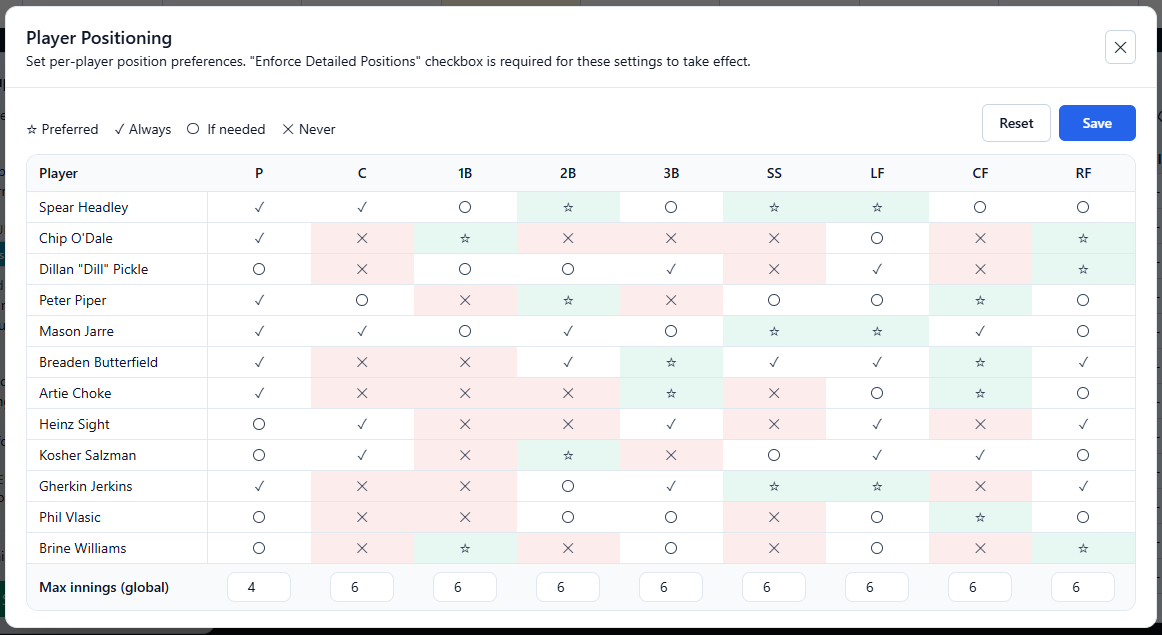
The window lists your roster by player and each defensive position in the lineup. If your team uses ten defensive players, XF may also appear.
Understand the four position levels#
Each player-position combination has one of four settings:
| Setting | Type | Effect during generation |
|---|---|---|
| ☆ Preferred | Soft preference | Lineup Generator favors assigning the player to this position when it can. Preferred does not guarantee an assignment. |
| ✓ Always | Neutral permission | The player may be assigned to this position without a preference or penalty. This is the default. |
| If needed | Soft preference | The player may play this position, but the Lineup Generator tries to use other eligible options first. |
| ⨉ Never | Hard restriction | Lineup Generator cannot assign the player to this position. |
Despite its name, Always does not mean the player must play that position or must play it in every inning. It simply means the players is always allowed to play that position.
Preferred and If needed guide the generator but can be set aside. Never must be honored and can prevent generation when no valid alternative exists.
A Preferred setting does not currently increase the likelihood that a player will be assigned to pitcher. Use a pitching plan or lineup locks when you need to place a specific pitcher into particular innings.
Set maximum innings by position#
The Max innings (global) row sets the maximum number of innings that any one player may be assigned to each position.
For example, setting catcher to 2 means that no player can catch more than two innings in the generated lineup. It does not limit the team to two total catching innings; different players can cover the remaining innings.
This is a hard limit when detailed positions are enforced. The default for each position is the team’s full number of innings, so it does not create an additional restriction unless you lower it.
Turn on detailed-position enforcement#
Saving the Player Positioning matrix stores your choices, but the generator only applies them when Enforce Detailed Positions is turned on under Player Position Detail.
Detailed-position enforcement is an Inningly Plus feature. A Free team can configure and save the matrix, but those settings will not affect generated lineups until enforcement is enabled for a Plus team. See Understand Free and Plus for plan context.
Once enabled, the generator applies:
- Never as a hard position restriction
- Max innings (global) as a hard position limit
- Preferred as a soft preference
- If needed as a soft preference to avoid the assignment when practical
- Always as a normally allowed assignment
How these settings differ from locks and availability#
Position settings, locks, and availability serve different purposes:
| Control | Applies to | Meaning |
|---|---|---|
| Player Positioning | The team across games | Guides or restricts the positions a player receives during generation. |
| Availability | One selected game | Removes the player from every inning of that game’s generation. |
| Cell lock | One player in one inning during the current editing session | Requires the next generation to keep that exact position or sit. |
Use Never when a player should not be generated at a particular position in any game. Mark the player unavailable when they will not participate in a specific game. Use a lock when you need a particular assignment to remain unchanged while generating the rest of that game’s lineup.
Position settings do not remove choices from the lineup cell dropdown. If you manually place and lock a player at a position marked Never, the next generation cannot satisfy both instructions. You must remove the lock or change the restriction.
Locks are temporary generation controls and are cleared when the saved game is loaded again. Player Positioning remains saved for the team until you change it.
Avoid making the lineup impossible#
Every defensive position must have an eligible player in every inning. A lineup may become impossible when position restrictions, maximum innings, availability, and locks leave the generator without enough valid assignments.
Common conflicts include:
- Every available player is marked Never at a required position.
- The only eligible player for a position is unavailable.
- A player is locked at a position marked Never.
- A player is locked for more innings than the position’s maximum allows.
- Position maximums are too low for the available players to cover every inning.
- Position restrictions conflict with other hard lineup rules and restrictions.
Use If needed instead of Never when an assignment is undesirable but still acceptable as a last resort. This gives Inningly more flexibility while continuing to favor other players.
If generation fails, Inningly opens Couldn’t Build This Lineup and identifies specific conflicts when possible. See Resolve a lineup that cannot be generated for help adjusting the affected setting.
Reset the position matrix#
Select Reset to discard unsaved changes and return to the last saved matrix.
If the matrix already matches the saved settings, selecting Reset again offers a full reset. A full reset changes every player-position combination to Always and restores each position’s maximum to the team’s full number of innings.
After generating, you can review, adjust, and save the lineup.
← Back to Lineups and Batting Orders
Related articles
- Create a Defensive Lineup Generate a defensive lineup using your available players, team settings, and lineup rules.
- Set Lineup Rules and Restrictions Choose the general rules Inningly should follow—or try to follow—when generating your lineup.
- Review, Adjust, and Save a Lineup Check a generated lineup, make manual changes, and save the version you intend to use for the game.
- Resolve a Lineup That Cannot Be Generated Use Inningly’s diagnostics to identify conflicting settings and adjust a lineup that cannot be generated.