
Review, Adjust, and Save a Lineup
Check a generated lineup, make manual changes, and save the version you intend to use for the game.
Last reviewed
After generating or pasting a defensive lineup, review each inning before saving it to the selected game. You can correct missing or duplicate positions, make manual assignments, and generate again while preserving the decisions you want to keep.
If you have not created the initial draft yet, start with Create a defensive lineup.
Check each inning for missing positions#
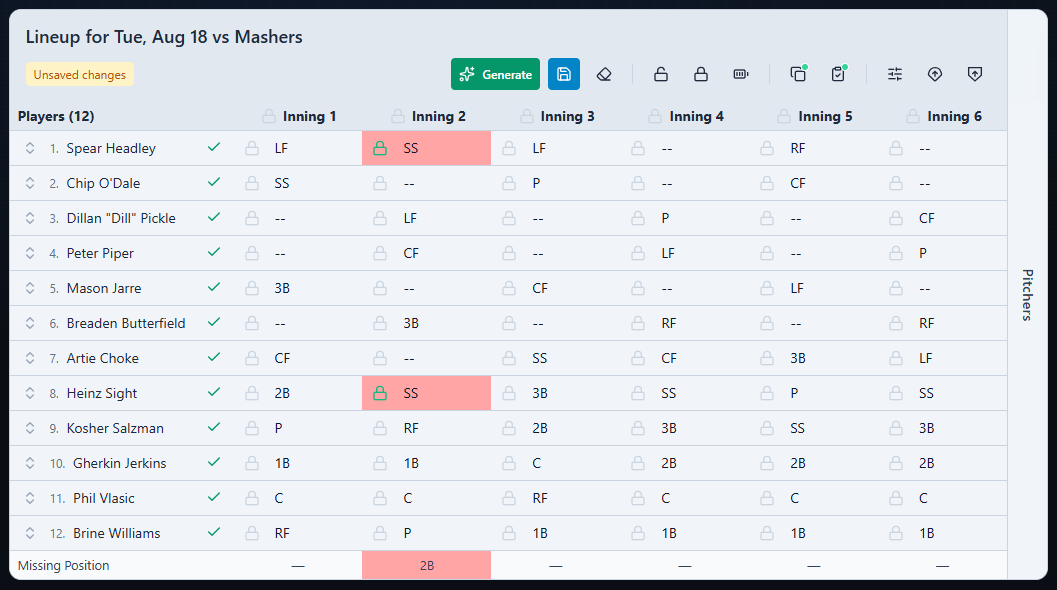
The Missing Position row at the bottom of the lineup grid identifies the first required defensive position that has not been assigned in each inning.
- A position abbreviation such as P, C, or SS means that position still needs to be assigned.
- A dash (—) means every required position is filled for that inning.
- If the same position is assigned to two players in one inning, the duplicate cells are highlighted in red.
When an inning has more than one missing position, the row shows the first one. Assign that position and continue reviewing the indicator until it changes to a dash.
Make manual position changes#
Select any lineup cell to choose a defensive position or – for a sit.
When you manually select a field position, Inningly automatically locks that cell. If you select Generate again, the locked assignment remains while unlocked cells may change.
Selecting – removes the field assignment and unlocks that cell. The generator can then decide whether the player should sit or receive a position during the next generation.
A manual assignment can conflict with your hard lineup rules and restrictions or player position restrictions. For example, locking two players at shortstop in the same inning or placing a player at a position marked Never can prevent the next lineup from being generated.
Review other lineup details#
Before saving, confirm that:
- Every participating player is marked available.
- Unavailable players are not included in the defensive assignments.
- Each inning has every required defensive position exactly once.
- Planned pitchers are assigned to the intended innings.
- The player order is correct.
You can drag player rows or inning columns to change their order. These changes become part of the saved lineup.
Understand unsaved changes#
The Unsaved changes badge appears when the lineup shown in the grid differs from the last lineup saved for the selected game.
Generating a new lineup or changing assignments, availability, player order, or inning order can create unsaved changes. The Save button—the disk icon in the lineup toolbar—is enabled when there is something new to save. It is temporarily disabled while Inningly is generating a lineup.
If you try to select another game while changes are unsaved, Inningly asks whether you want to discard them. Cancel to remain on the current game and save, or confirm the change to leave without keeping your latest edits.
Save the lineup to the game#
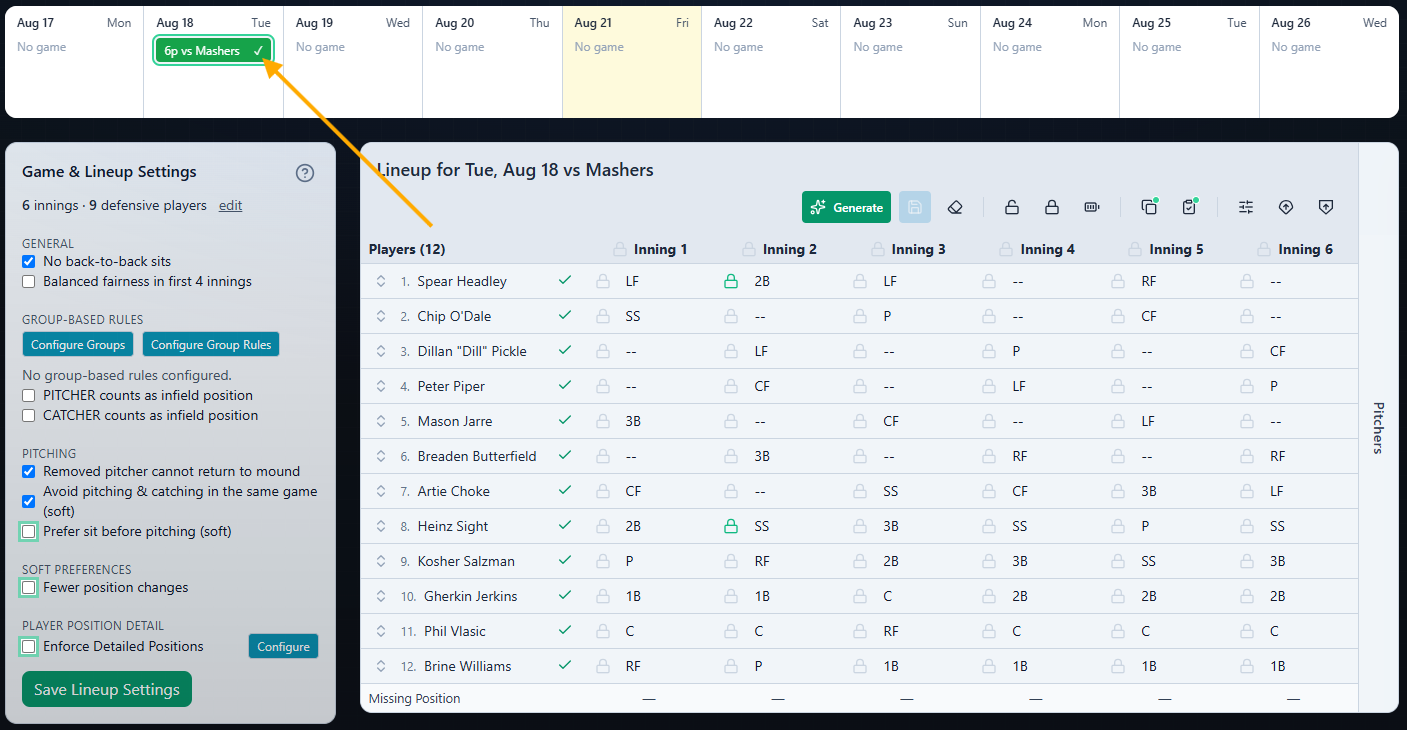
Confirm that the correct game is selected in the strip calendar, then select Save in the lineup toolbar.
Saving associates the current lineup with that game, including:
- Defensive assignments for each inning
- Player order
- Player availability
- The current pitching plan
After the save succeeds, the Unsaved changes badge disappears.
Inningly allows you to save an incomplete lineup as a draft. However, the selected game receives a checkmark in the strip calendar only when every inning contains the team’s full set of required defensive positions.
Make changes later#
Select the game again whenever you need to return to its saved lineup. Inningly reloads the saved assignments, availability, player order, and pitching plan.
Cell locks are editing controls and are not retained when the saved game is loaded again. If you want an assignment to remain unchanged during another generation, lock that cell again before selecting Generate.
You can then make additional changes and select Save again. The new save replaces the previously saved version for that game; there is no separate saved-version history or undo after saving.
If a new generation cannot satisfy your current assignments and rules, the existing grid remains in place. Review the message shown in Couldn’t Build This Lineup, then see Resolve a lineup that cannot be generated.
← Back to Lineups and Batting Orders
Related articles
- Create a Defensive Lineup Generate a defensive lineup using your available players, team settings, and lineup rules.
- Set Lineup Rules and Restrictions Choose the general rules Inningly should follow—or try to follow—when generating your lineup.
- Set Player Position Preferences and Restrictions Set where each player should, may, or should not play when Inningly generates a defensive lineup.
- Resolve a Lineup That Cannot Be Generated Use Inningly’s diagnostics to identify conflicting settings and adjust a lineup that cannot be generated.