
Custom group rules for lineups
Create player groups and set minimum infield, outfield, pitching, or catching requirements to match your league’s defensive lineup rules.
Custom group rules help you build defensive lineups around requirements that general playing-time rules cannot express—for example, having a third grader pitch at least two of the first four innings.
You can create named groups of players, define minimum playing requirements, and choose which rules the generator uses.
Group rules are hard requirements, not soft preferences. When an applicable rule is enabled, the generator must satisfy it alongside availability, locks, and other hard rules. However, a named group with no available members is skipped, so always check group membership and game availability.
Open the group settings#
- Open your team’s Lineup page.
- Find Game & Lineup Settings on the left.
- Locate Group-Based Rules.
Use a desktop or sufficiently wide tablet screen for configuration. The settings panel is not shown on narrow phone screens.
Both Free and Plus teams can create up to four named player groups. The number of rules is separate:
- Free: Save one group-based rule.
- Plus: Save up to four group-based rules.
See Understand Free and Plus for more about team plans.
Create and name your player groups#
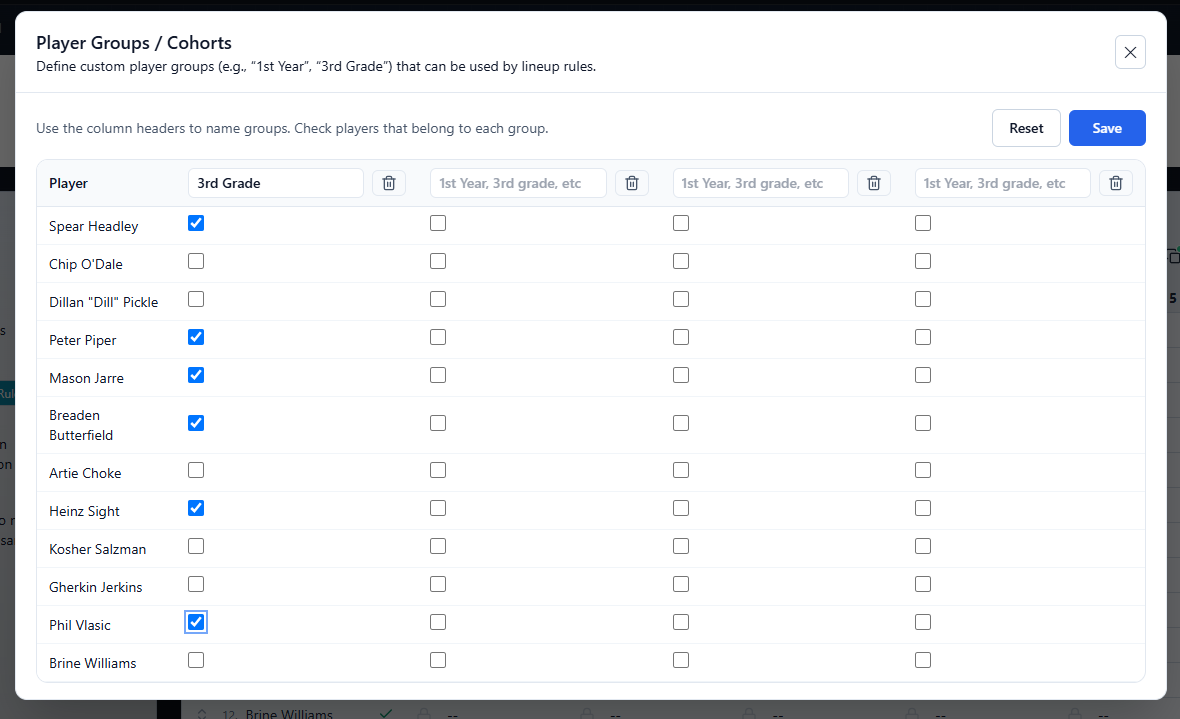
Select Configure Groups to open Player Groups / Cohorts.
- Enter a descriptive name in a group column’s header, such as 3rd Grade, 2nd Grade, or 1st Year.
- Check the players who belong to that group.
- Repeat for any additional groups.
- Select Save and confirm that Saved. appears.
A player can belong to more than one group. Only named groups appear in the group-rule dropdown.
Groups are saved for the team and reused across games. Creating a group does not create a playing requirement by itself—you will define that separately.
Understand ALL versus a named group#
This choice changes who must meet the minimum.
| Selection | How the requirement works |
|---|---|
| ALL | Every available player must meet the minimum individually. You do not need to create a group first. |
| A named group | Available members contribute toward one collective minimum. The requirement does not apply separately to every member. |
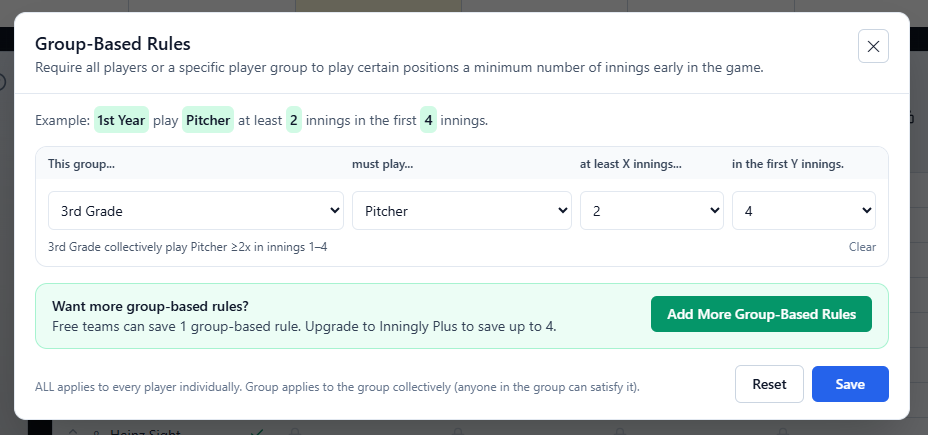
For example, 3rd Grade → Pitcher → 2 → 4 requires the group to contribute at least two pitching innings within innings 1–4. One group member could pitch both innings, or different members could contribute.
It does not require every third grader to pitch twice, guarantee equal opportunities within the group, or select a particular pitcher.
A named group containing your entire roster is not equivalent to ALL. Use ALL when every available player must individually meet the requirement.
Define a group rule#
Select Configure Group Rules.
Complete these four fields for each rule:
| Field | What to choose |
|---|---|
| This group… | ALL or a saved, named group. |
| must play… | Infield, Outfield, Pitcher, or Catcher. |
| at least X innings… | The minimum qualifying innings required. |
| in the first Y innings. | The deadline for meeting the minimum. |
The inning choices run from 1 through your team’s configured game length. The window always starts with inning 1; this editor does not offer a custom starting inning.
Review the summary, then select Save. Incomplete rows are ignored when saving, so make sure all four fields are filled in.
These are minimum requirements. They do not set an exact total or prevent additional qualifying assignments. They also do not require consecutive innings.
Examples of coaching requirements#
| Requirement | Rule configuration | What it means |
|---|---|---|
| A third grader must pitch at least two of the first four innings. | 3rd Grade → Pitcher → 2 → 4 | Available third graders collectively cover at least two pitching innings within innings 1–4. |
| Everyone must play outfield in the first five innings. | ALL → Outfield → 1 → 5 | Each available player receives at least one outfield inning within innings 1–5. |
| A second grader must catch the first inning. | 2nd Grade → Catcher → 1 → 1 | An available member of the group catches inning 1. |
| Everyone must play at least two infield innings and one outfield inning in a six-inning game. | ALL → Infield → 2 → 6, plus ALL → Outfield → 1 → 6 | Each available player meets both minimums. This uses two rules and therefore requires Plus. |
These examples describe requirements, not guaranteed lineup patterns. Inningly chooses assignments that satisfy the applicable hard rules when a solution exists.
The rules count defensive inning assignments in the lineup. They do not verify pitches thrown, completed innings during the actual game, or every detail of your league’s regulations.
Decide whether pitcher and catcher count as infield#
An Infield rule counts assignments at 1B, 2B, 3B, and SS.
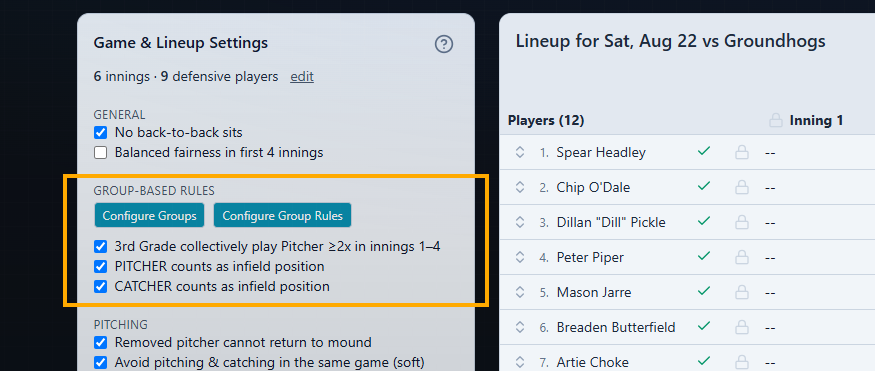
Under Group-Based Rules, you can also enable:
- PITCHER counts as infield position
- CATCHER counts as infield position
Choose these according to your league’s definition. They affect Infield requirements; they do not change a rule specifically requiring Pitcher or Catcher.
Choose the rules to use and generate#
After saving your rule definitions, their summaries appear under Group-Based Rules.
- Select the game in the calendar strip.
- Confirm which players are available.
- Check each group rule that should apply to this generation.
- Review the pitcher/catcher infield-counting options.
- Select Generate.
The current rule-checkbox choices affect generation even before you select Save Lineup Settings.
Use Save Lineup Settings to persist the panel’s settings for the team. These are shared team settings, not a separate set of rule definitions saved to each game.
Before saving an unchecked rule: In the current behavior, saving lineup settings with a group rule unchecked removes that rule’s saved definition. If you only want to omit it from the next generation, uncheck it and generate without saving that change. Recheck it before saving settings if you want to retain the definition.
Saving groups or lineup settings does not save the defensive assignments in the grid. After generation, review, adjust, and save the lineup to the selected game.
Edit or remove groups and rules#
Change a group’s name or players#
Reopen Configure Groups, edit the column name or membership checkboxes, and select Save.
Review any rules using that group before generating again. Changing membership changes which players can contribute toward its requirements.
Remove a group#
Select the group column’s trash icon, labeled Delete this group, and confirm the deletion. Later group columns shift left.
Rules referencing the deleted group change to ALL. This changes their meaning from a collective group minimum to an individual minimum for every available player.
Before generating again, open Configure Group Rules and correct or clear any affected rules. Save your changes.
Change or remove a rule#
Open Configure Group Rules:
- To edit a rule, change its selections and select Save.
- To remove a rule, select Clear on its row, then Save.
Reset unsaved edits#
In either editor, Reset first restores the last saved state. If the editor already matches that state, Reset offers a full reset.
A full group reset clears group names and membership. A full rule reset clears the rule definitions. Review the result and save only if you intend to keep it.
If a rule is not being applied#
Check these items before changing the requirement:
- Is the rule checked? Unchecked rules are excluded from generation.
- Was the complete rule saved? Incomplete rows are ignored.
- Does the group have available members? A named group with no available members is skipped without preventing generation.
- Did you choose ALL or a named group? A collective minimum does not guarantee that every member receives an assignment.
- Should pitching or catching count as infield? Review the two infield-counting options.
A successful generation does not confirm that an empty group’s league requirement was met.
If the rules prevent generation#
When the current requirements cannot be satisfied together, Inningly opens Couldn’t Build This Lineup. It may identify group-based playing-time rules as a conflict.
Review the affected requirement alongside:
- Group membership and availability: Are the correct players included, and are they actually available?
- Locks: Are eligible group members locked elsewhere during the required innings?
- Position restrictions: Are group members prevented from playing the required position?
- Minimums and deadlines: Is there enough time and position capacity to meet every requirement?
- Other hard rules: Do sitting, fairness, or pitching rules conflict with the group requirement?
Correct the specific conflict, then generate again. Do not weaken a required league rule simply to obtain a lineup; first check for incorrect membership, availability, or unnecessary locks. Only mark players available if they will participate.
For broader settings, see Set lineup rules and restrictions. For diagnostic messages and practical corrections, see Resolve a lineup that cannot be generated.
← Back to Lineups and Batting Orders
Related articles
- Set Lineup Rules and Restrictions Choose the general rules Inningly should follow—or try to follow—when generating your lineup.
- Set Player Position Preferences and Restrictions Set where each player should, may, or should not play when Inningly generates a defensive lineup.
- Review, Adjust, and Save a Lineup Check a generated lineup, make manual changes, and save the version you intend to use for the game.
- Resolve a Lineup That Cannot Be Generated Use Inningly’s diagnostics to identify conflicting settings and adjust a lineup that cannot be generated.